Listing
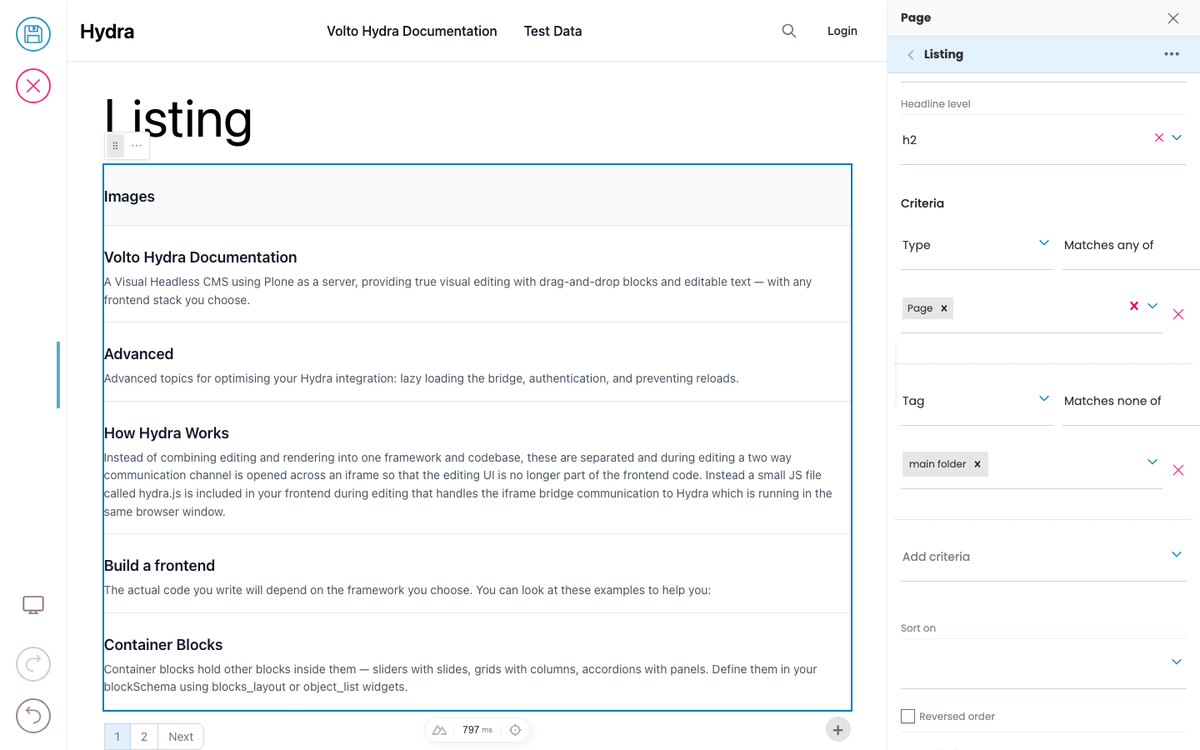
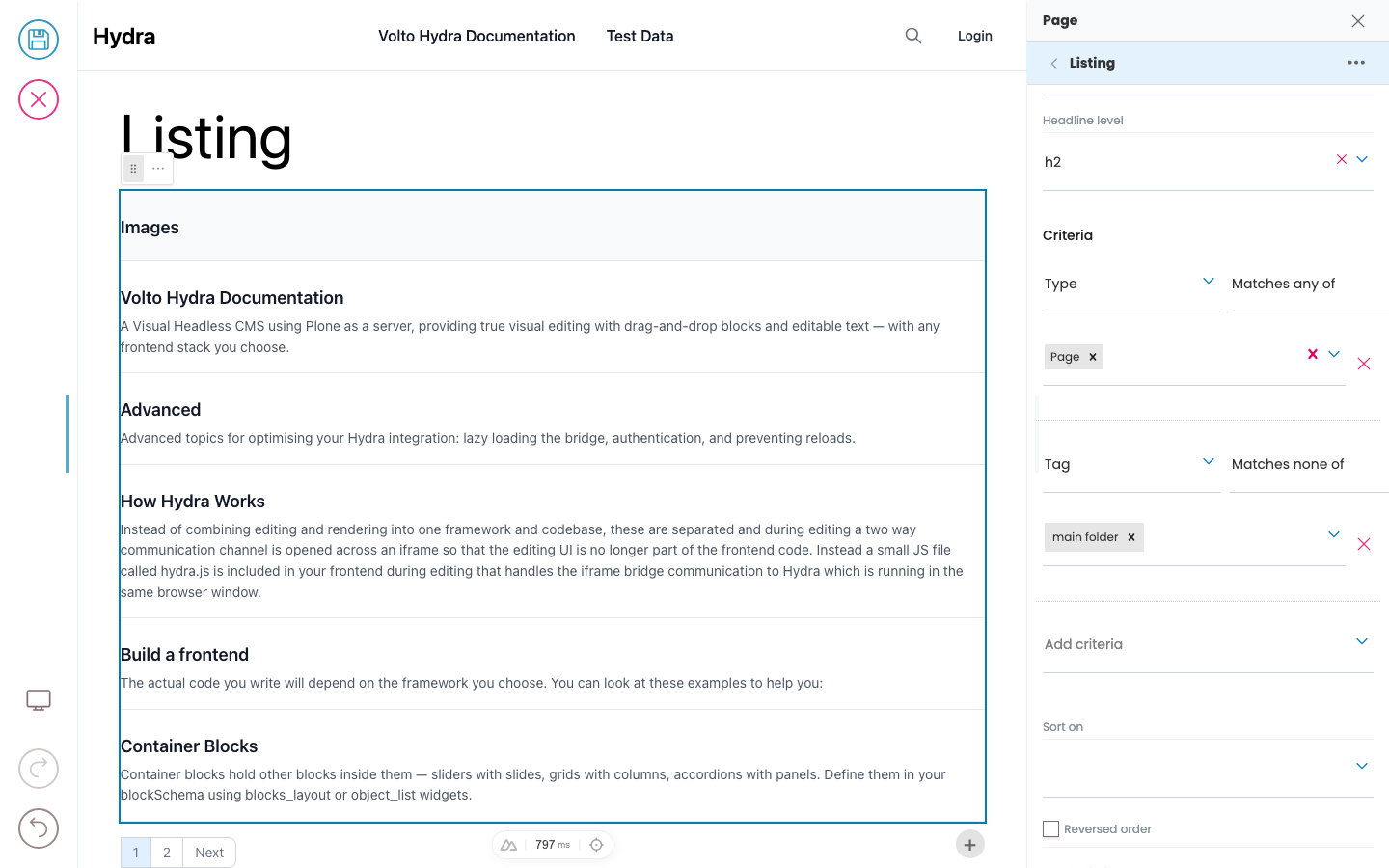
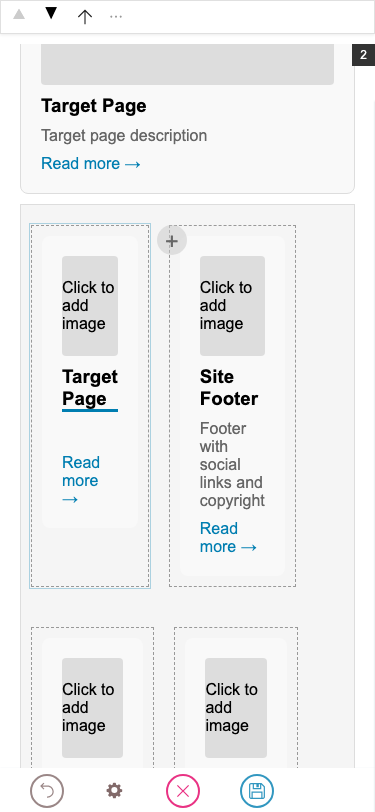
Displays a list of content items from a query. The listing block fetches items from the Plone catalog based on a querystring and renders each item using a configurable item type (variation). Built-in item types are default (title + description) and summary (title + description + image).
Container Blocks
A block — or the page itself — is divided into regions, and each region holds an ordered list of blocks. Sliders have a slides region, grids have columns, accordions have panels; a page has its main items region (and optionally a header, footer, …).
Context Navigation Block
A vertical navigation list for grouped pages — a left sidebar on desktop and a collapsible disclosure at the top on mobile. Each row is a navItem (hand-added link) and/or a listing (auto-populated from a path query). The active link is detected from the current URL and gets aria-current="page" plus a .current class. Named after Plone's @contextnavigation endpoint, which serves the same purpose.
Another Page
Cultivar sweet irish and irish flavour cinnamon foam crema percolator caffeine aftertaste mountain.
Custom Blocks
Define custom block types directly in your frontend configuration via the blocks option in initBridge. No Volto plugin deployment required. Each block type needs an id, title, and a blockSchema with its field properties.
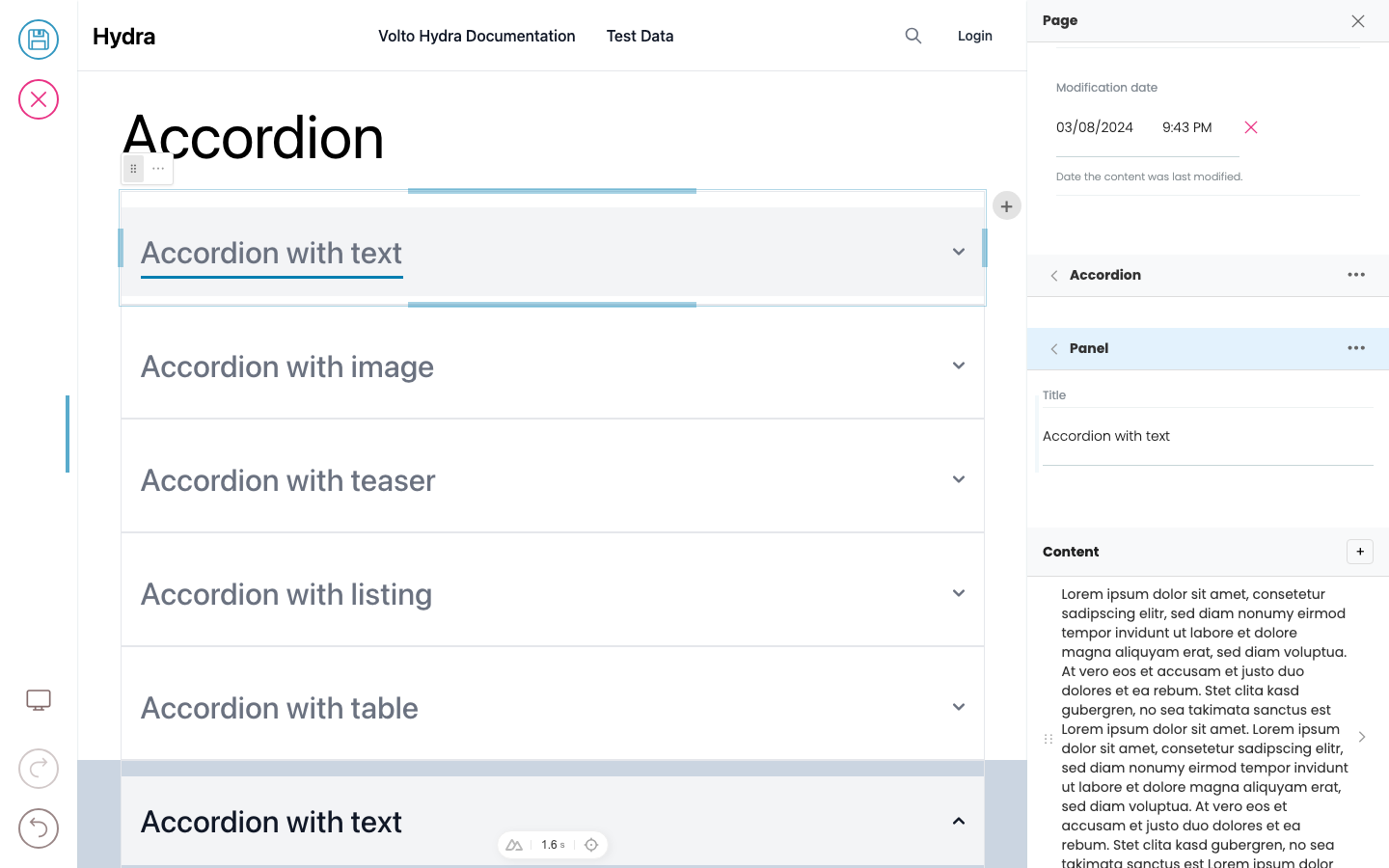
Accordion
The accordion contains other blocks in an accordion behavior layout.
Advanced
Advanced topics for optimising your Inka integration: lazy loading the bridge, authentication, and preventing reloads.
How Inka Works
Instead of combining editing and rendering into one framework and codebase, these are separated and during editing a two way communication channel is opened across an iframe so that the editing UI is no longer part of the frontend code. Instead a small JS file called hydra.js is included in your frontend during editing that handles the iframe bridge communication to Inka which is running in the same browser window.
Build a frontend
The actual code you write will depend on the framework you choose. You can look at these examples to help you:
Button
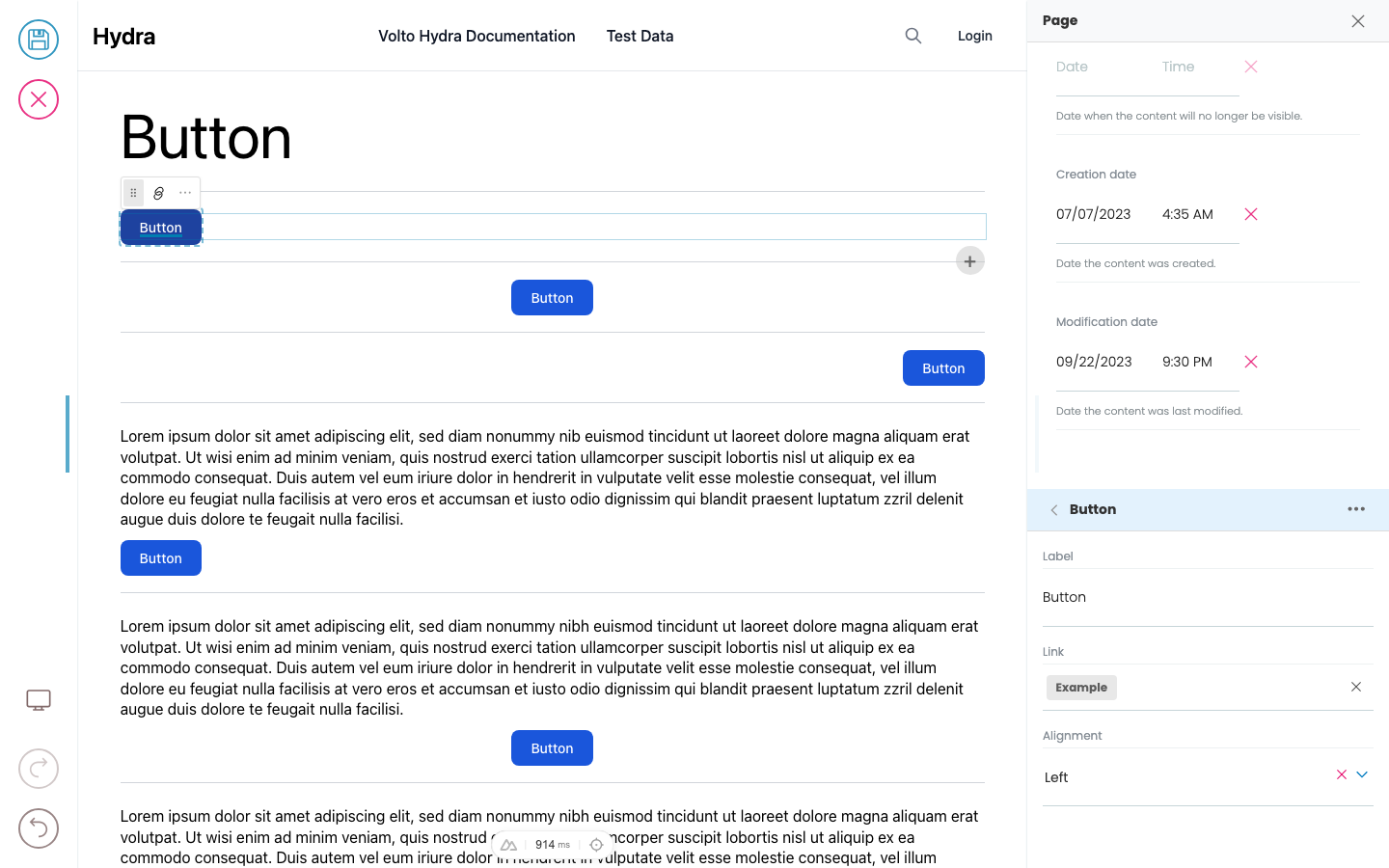
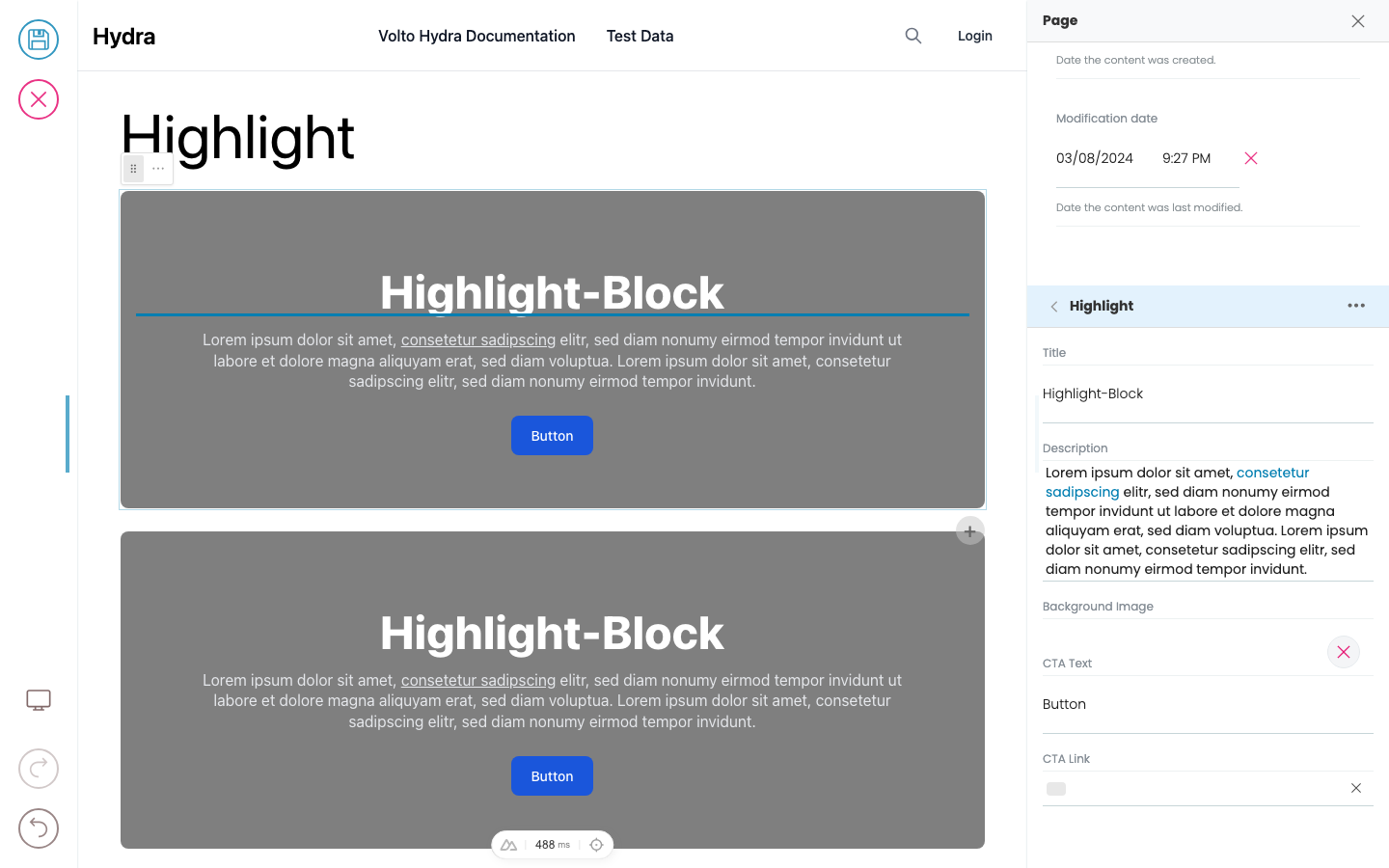
The button block shows a button for which a link (internal or external) can be stored. The button can be displayed left, right or center and have a background color.




Developer Reference
Schema
Pass this object inside the blocks option when calling initBridge() to register this block type with the admin UI. See Custom Blocks for the full setup guide.
{
  "listing": {
    "itemTypeField": "variation",
    "schemaEnhancer": {
      "inheritSchemaFrom": {
        "mappingField": "fieldMapping",
        "defaultsField": "itemDefaults",
        "filterConvertibleFrom": "@default",
        "title": "Item Type",
        "default": "summary"
      }
    }
  },
  "summary": {
    "fieldMappings": {
      "@default": {
        "@id": "href",
        "title": "title",
        "description": "description",
        "image": "image"
      }
    },
    "blockSchema": {
      "properties": {
        "href": {
          "title": "Link",
          "widget": "url"
        },
        "title": {
          "title": "Title"
        },
        "description": {
          "title": "Description",
          "widget": "textarea"
        },
        "image": {
          "title": "Image",
          "widget": "url"
        },
        "date": {
          "title": "Date",
          "widget": "date"
        }
      }
    }
  },
  "default": {
    "fieldMappings": {
      "@default": {
        "@id": "href",
        "title": "title",
        "description": "description"
      }
    },
    "blockSchema": {
      "properties": {
        "href": {
          "title": "Link",
          "widget": "url"
        },
        "title": {
          "title": "Title"
        },
        "description": {
          "title": "Description",
          "widget": "textarea"
        }
      }
    }
  }
}
JSON Block Data
Example JSON as stored in the Plone content API. This is the data structure your component will receive in the block prop.
{
  "@type": "listing",
  "variation": "summary",
  "querystring": {
    "query": [
      {
        "i": "portal_type",
        "o": "plone.app.querystring.operation.selection.any",
        "v": [
          "Document"
        ]
      }
    ],
    "sort_on": "effective",
    "sort_order": "descending"
  }
}

{
  "@uid": "item-1",
  "@type": "summary",
  "href": "/news/my-article",
  "title": "My Article",
  "description": "Article summary text",
  "image": "/news/my-article/@@images/image-800x600.jpg"
}
Rendering
How this block renders in your frontend. Add its handling to your renderer, or — for list-style blocks — register a fetcher and reuse your list rendering.
function ListingBlock({ block, blockId }) {
  const [items, setItems] = useState([]);

  useEffect(() => {
    async function load() {
      const fetchItems = ploneFetchItems({ apiUrl: API_URL });
      const result = await expandListingBlocks([blockId], {
        blocks: { [blockId]: block },
        fetchItems: { listing: fetchItems },
        itemTypeField: 'variation',
      });
      setItems(result.items);
    }
    load();
  }, [block.querystring]);

  return (
    <div data-block-uid={blockId} className="listing-block">
      {items.map((item, i) => (
        <BlockRenderer key={i} block={item} />
      ))}
    </div>
  );
}