Listing
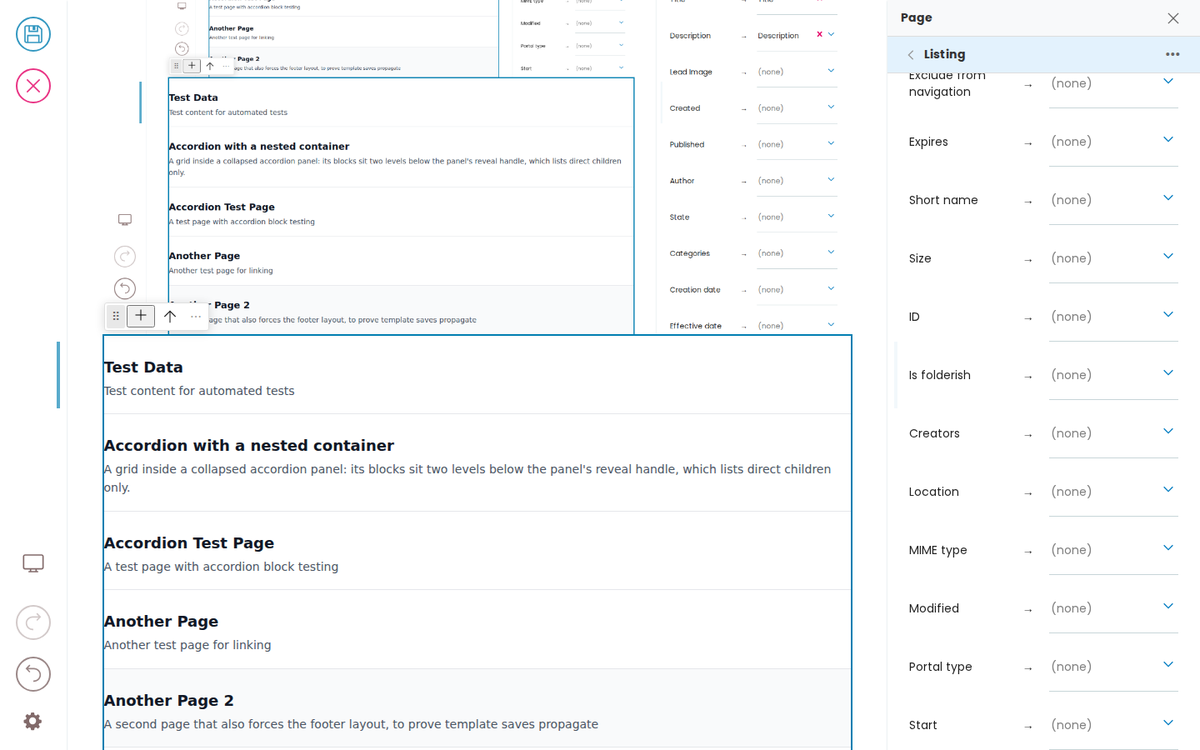
Displays a list of content items from a query. The listing block fetches items from the Plone catalog based on a querystring and renders each item using a configurable item type (variation). Built-in item types are default (title + description) and summary (title + description + image).
Accordion
The accordion contains other blocks in an accordion behavior layout.
Advanced
Advanced topics for optimising your Inka integration: lazy loading the bridge, authentication, and customising the editor.
How Inka Works
Inka is the page-building and governance layer between your CMS and your front ends. Content stays in the CMS, rules come from your design system, and front ends in any framework render the result. Editing is private; publishing is public.
Content as Markdown
Author Plone block content as readable Markdown. One loader turns a .md file into block JSON, so the same file is the content the API serves, the deploy ships, and the docs render — with no JSON to hand-edit.
Build a frontend
The actual code you write will depend on the framework you choose. You can look at these examples to help you:
Button
The button block shows a button for which a link (internal or external) can be stored. The button can be displayed left, right or center and have a background color.
Accordion
The accordion contains other blocks in an accordion behavior layout.
Advanced
Advanced topics for optimising your Inka integration: lazy loading the bridge, authentication, and customising the editor.
How Inka Works
Inka is the page-building and governance layer between your CMS and your front ends. Content stays in the CMS, rules come from your design system, and front ends in any framework render the result. Editing is private; publishing is public.
Content as Markdown
Author Plone block content as readable Markdown. One loader turns a .md file into block JSON, so the same file is the content the API serves, the deploy ships, and the docs render — with no JSON to hand-edit.
Build a frontend
The actual code you write will depend on the framework you choose. You can look at these examples to help you:





Developer Reference
Schema
Pass this object inside the blocks option when calling initBridge() to register this block type with the admin UI. See Custom Blocks for the full setup guide.
    listing: {
        id: 'listing',
        // The chooser group, stated: a block's group is never made up.
        group: 'common',
        blockSchema: {
            fieldsets: [{ id: 'default', title: 'Default', fields: ['variation', 'fieldMapping', 'headline', 'headlineTag', 'querystring'] }],
            properties: {
                // The frontend declares its own mapping widget and what a result
                // offers to map: these are the fields its fetcher (ploneFetchItems,
                // @querystring-search) returns. A listing of another kind (related
                // items, a feed) declares the fields ITS fetcher returns.
                fieldMapping: {
                    title: 'Field mapping',
                    widget: 'field_mapping',
                    description: 'Map query result fields to item block fields',
                    sourceFields: {
                        '@id': { title: 'URL', type: 'string' },
                        title: { title: 'Title', type: 'string' },
                        description: { title: 'Description', type: 'string' },
                        image: { title: 'Lead Image', type: 'image' },
                        created: { title: 'Created', type: 'date' },
                        effective: { title: 'Published', type: 'date' },
                        Creator: { title: 'Author', type: 'string' },
                        review_state: { title: 'State', type: 'string' },
                        Subject: { title: 'Categories', type: 'array' },
                    },
                    // …and every metadata column the site's catalog holds, so a
                    // site's own fields can be mapped too.
                    vocabulary: { '@id': 'plone.app.vocabularies.MetadataFields' },
                },
                headline: { title: 'Headline', type: 'string' },
                headlineTag: { title: 'Headline tag', widget: 'select', choices: [['h1','h1'],['h2','h2'],['h3','h3'],['h4','h4'],['h5','h5'],['h6','h6']] },
                querystring: { title: 'Search criteria', widget: 'querystring' },
                query: { title: 'Query', widget: 'querystring' },
                // No static default: a listing's item type is chosen from what
                // its CONTAINER allows (blocksField '..'), and the recipe below
                // resolves `summary` against that — a context nav gets navItem.
                variation: {
                    title: 'Item Type',
                    widget: 'blockTypeSelect',
                    filterConvertibleFrom: '@default',
                    blocksField: '..',
                },
            },
        },
        schemaEnhancer: {
            inheritSchemaFrom: {
                typeField: 'variation',  // listing has no blocks field — declare on recipe
                mappingField: 'fieldMapping',
                defaultsField: 'itemDefaults',
                // The item type comes from the enclosing container's allowed
                // types; `summary` is the PREFERRED default, used only where
                // the container allows it (blockSync resolves it).
                blocksField: '..',
                filterConvertibleFrom: '@default',
                default: 'summary',
                // Override the default "hide everything not in @default":
                // teaser has an `overwrite` meta-toggle that should remain
                // editable per-child so the user can override auto-populated
                // values for a specific teaser. Listing claims styling/link
                // fields uniformly across items; not the override toggle.
                parentControlled: {
                    teaser: ['head_title', 'openLinkInNewTab', 'styles'],
                },
            },
        },
    }
JSON Block Data
Example block JSON (as stored in the CMS). This is the data structure your component will receive in the block prop.
{
  "@type": "listing",
  "headline": "Listing: Default",
  "variation": "default",
  "styles": {
    "backgroundColor": "transparent"
  },
  "querystring": {
    "b_size": "4",
    "limit": "10",
    "query": [
      {
        "i": "portal_type",
        "o": "plone.app.querystring.operation.selection.any",
        "v": [
          "Document"
        ]
      },
      {
        "i": "Subject",
        "o": "plone.app.querystring.operation.selection.none",
        "v": [
          "main folder"
        ]
      }
    ],
    "sort_on": "getId",
    "sort_order": "ascending"
  },
  "query": [],
  "block": "24280e07-e962-4414-8ee5-cdaf58ca5f35",
  "headlineTag": "h2"
}
Rendering
How this block renders in your frontend. Add its handling to your renderer, or — for list-style blocks — register a fetcher and reuse your list rendering.
function ListingBlock({ block, blockId }) {
  const [items, setItems] = useState([]);

  useEffect(() => {
    async function load() {
      const fetchItems = ploneFetchItems({ apiUrl: API_URL });
      const result = await expandListingBlocks([blockId], {
        blocks: { [blockId]: block },
        fetchItems: { listing: fetchItems },
        itemTypeField: 'variation',
      });
      setItems(result.items);
    }
    load();
  }, [block.querystring]);

  return (
    <div data-block-uid={blockId} className="listing-block">
      {items.map((item, i) => (
        <BlockRenderer key={i} block={item} />
      ))}
    </div>
  );
}