Translations
On a site in more than one language, every page can have a translation in each language. Inka shows you which translations a page has, lets you read a page beside its other language while you edit, and tells you which parts of a translation still need work.
Each language is a tree of its own: the site has a folder per language (for example /en and /de), and a page's translations live in the matching place in each. A language shows its own menu, never the whole site in two languages.
Seeing a page's translations
Open Manage translations from the toolbar's More menu. It lists every language the site has, and for each one either the translation of this page or a way to make one.

Making a translation
There are two ways a page gets a translation:
- Translate it. In Manage translations, use the translate link next to a language that has none yet. Inka creates the translation in that language's tree, linked to the original, with a copy of the original's blocks to translate from, and opens it in the editor. Folders and images can be translated too; a translated image gets a file of its own.
- Link an existing page. When both pages were written separately, use Link next to the language and pick the page. The two become translations of each other, both ways. Unlink separates them again.
Fields shared between languages
Some fields are the same in every language — the page's tags, for example. These belong to the page in the site's default language: that is where you edit them. On a translation they are shown as inherited, with the value from the default-language page, rather than asking for them a second time.
Reading a page beside its other language
While editing a page that has a translation, the editor offers a button for each of the page's other languages. Choose one and it opens beside the page you are editing, drawn by the same frontend, so you can translate while reading the original.
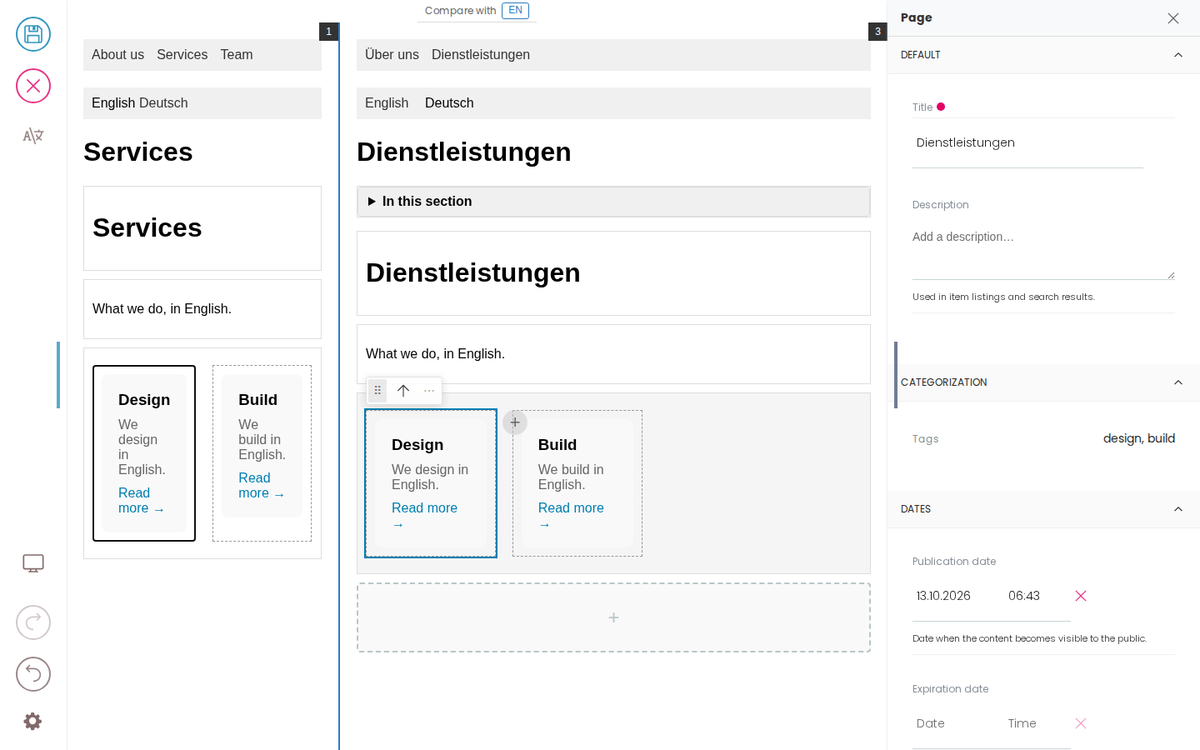
The other language is for reading only:
- Selecting it shows its fields in the sidebar, read only.
- Selecting a block in the page you are editing shows the same block in the other language, so you do not have to find it yourself.
- A block can be inspected in the other language but not changed there.
- If a block has no counterpart in the other language, Inka says so. That happens when the two pages were linked rather than translated (so no block was copied from another), for a block added after the translation was made, and when the original block has since been deleted.
What still needs translating
A translation keeps a record of where each copied block came from, so Inka can tell you what needs doing — without you reading the whole page again:
- Untranslated — a block still exactly as it was copied from the original.
- Out of date — the original has changed since this block was translated.
When you select a block inside a container, the container's row in the sidebar carries a coloured dot if blocks inside it still need work — blue for untranslated, purple for out of date. Hover over the dot to see how many, for example "2 blocks inside are not translated yet". You do not need the other language open to see these markers; they are there as soon as you open the page.
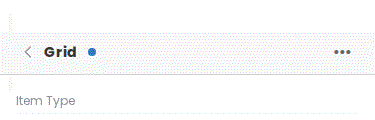
An out-of-date marker clears when you do the work: update the block to match the original and save. The record of that is kept in the page's content, so the marker stays cleared for everyone.